
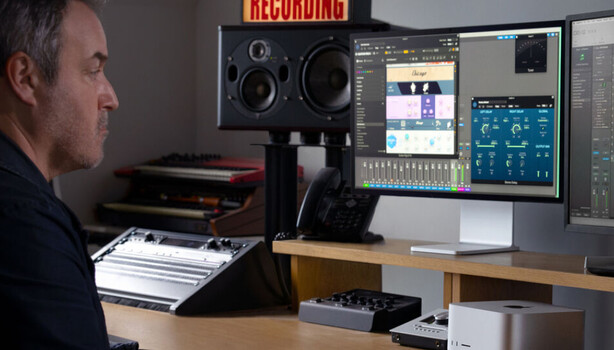

Your desk is the other half of your camera bag. Here is every piece of it, from monitor to backup drive, at three price tiers.
Photographers obsess over what goes in the camera bag. Hundreds of hours researching bodies, lenses, and lighting. Thousands of dollars on glass that resolves detail the human eye can barely perceive, obsessing over MTF charts and aperture ratings. Then they come home and edit those painstakingly captured images on whatever monitor happened to be on sale at Best Buy, save them to a single hard drive with no backup, and wonder why printed colors do not match the screen.
Your desk setup is the second half of your imaging chain, and in many ways it is the more consequential half. The camera captures the data. The desk is where you interpret it, refine it, and deliver it. A poorly calibrated monitor will silently sabotage every editing decision you make. Slow storage will bleed hours from your life. A bad chair will end your career before your eyes go.
This guide covers every component of a professional photographer’s workstation, organized by category with recommendations at three tiers: Good (functional and affordable), Better (the sweet spot for most working photographers), and Best (premium, no-compromise picks). Every item listed here is something you can research and purchase today. Let’s build a desk that is worthy of the images you are bringing home.
1. The Monitor
This is the single most important purchase on this list. Every color decision, every exposure adjustment, every retouching choice you make is filtered through your display. If it is lying to you, your edits are wrong. Period. You might not notice on your own screen, but clients viewing your work on their calibrated displays or receiving printed output will notice immediately.
What matters for photo editing:
- Panel type: IPS is the standard; OLED is emerging but not yet ideal for color-critical work
- Color gamut coverage: 99%+ sRGB is the minimum; 95%+ Adobe RGB and DCI-P3 for serious work
- Factory calibration: Delta E below 2
- Resolution: 4K minimum at 27 inches
- Bit depth: True 10-bit or 8-bit plus FRC
- Connectivity: USB-C with power delivery eliminates cable clutter
If any of those specs feel like alphabet soup, Monitor Specs Decoded breaks down what sRGB, Adobe RGB, DCI-P3, and Delta E actually mean for photo editing.
Good (~$620): Dell UltraSharp U2725QE (27″ 4K). The successor to the beloved U2723QE, with an enhanced IPS Black panel delivering a 3,000:1 contrast ratio, 99% DCI-P3, factory calibrated Delta E < 1.5, Thunderbolt 4 with 140 W PD, and a 120 Hz refresh rate. A major upgrade over its predecessor at a reasonable price.
Better (~$1,300): ASUS ProArt PA32QCV (32″ 6K). 98% DCI-P3, Calman Verified, true 10-bit, dual Thunderbolt 4 with 96 W PD, LuxPixel anti-glare coating. A genuine professional display that gives you 145% more workspace than a 4K panel of the same size.
Best (~$1,500): BenQ SW272U (27″ 4K). 99% Adobe RGB, hardware calibration via 16-bit 3D LUT, Nano Matte anti-glare panel, dedicated wireless Hotkey Puck G3 for color space switching, and a shading hood included in the box. Purpose-built for photographers.
2. Monitor Calibration
A color-accurate monitor is only accurate on the day it ships. Panel characteristics drift over time, and ambient lighting changes how you perceive color. Calibration devices measure your monitor’s actual output and build a correction profile that compensates for any deviation. If you are delivering work to clients, calibrating monthly is not optional; it is professional hygiene.
Good (~$170): Datacolor Spyder Essential. The current-generation calibrator replacing the SpyderX Pro. One-click calibration, supports OLED, Mini LED, and Apple Liquid Retina XDR displays. USB-C native. Good enough for most hobbyists and semi-pros.
Better (~$230): Calibrite ColorChecker Display Pro. Successor to the X-Rite i1Display Pro. Excellent accuracy, supports wide gamut, ambient light measurement, projector calibration, and unlimited display profiles.
Best (~$270): Datacolor SpyderPro. Advanced calibration with Rec. 709 and Rec. 2020 targets, gamma curve adjustment, multi-display matching via StudioMatch, and support for displays up to 12,000 nits. The most complete calibration toolkit currently available.
3. The Computer
Your computer needs to handle large raw files, run Lightroom or Capture One without stuttering, and export batches without overheating. The specifics matter less than they used to: any modern machine with 16 GB or more of RAM, an SSD for your OS and catalog, and a reasonably current processor will handle the vast majority of photography workflows. Where you will feel the difference is in batch exports, panorama stitching, and heavy Photoshop compositing.
Good (~$600): Mac mini M4 (16 GB / 256 GB). Surprisingly capable for photo editing at an absurd price point. Add external storage and you have a genuinely professional setup.
Better (~$1,400): Mac mini M4 Pro (24 GB / 512 GB). More RAM for large catalogs, faster exports, ProRes acceleration. The sweet spot for working photographers.
Best (~$2,000+): Mac Studio M4 Max. Overkill for most photo workflows, but justified if you are editing video alongside stills or running massive composites. Front-accessible ports are a welcome touch.
Windows users have excellent options too. A Ryzen 7 or Intel Core i7 desktop with 32 GB RAM, a dedicated GPU, and NVMe storage will give you what you need. The Mac ecosystem wins on color management consistency and integration with Apple’s display ecosystem.
If you are setting up a new editing workstation and want to learn the software side too, Mastering Adobe Lightroom and The Complete Capture One Editing Guide are both excellent resources. A great monitor means nothing if your software skills are not keeping pace.
4. Keyboard and Mouse
You use these more than any piece of camera gear. Ergonomics matter. A comfortable keyboard and precise mouse reduce fatigue during long editing sessions and speed up your workflow through shortcut fluency. Wireless is now reliable enough for professional use, and the reduced cable clutter is worth it.
Keyboard
Good (~$110): Logitech MX Keys S. Low-profile keys, backlit, multi-device switching, comfortable typing feel. The default recommendation for creatives.
Better (~$60): Keychron K3 Max. Mechanical switches in a slim profile, hot-swappable, wireless. Better tactile feedback for heavy keyboard users, albeit less custom functions than the Logitech.
Best (~$150): Apple Magic Keyboard with Touch ID. If you are in the Mac ecosystem, the biometric unlock and seamless integration justify the price.
Mouse and Trackpad
Good (~$100): Logitech MX Master 3S. Ergonomic shape, thumb wheel for horizontal scrolling in timelines, programmable buttons for Lightroom shortcuts. 8K DPI sensor tracks on glass.
Better (~$120): Logitech MX Ergo S. Trackball design eliminates wrist movement entirely. A revelation for photographers with RSI concerns.
Best (~$120): Apple Magic Trackpad. Gesture-based navigation is genuinely faster for some editing workflows. Force Touch pressure sensitivity integrates with some apps.
5. Editing Peripherals
These are the tools that sit alongside your keyboard and mouse and accelerate specific parts of the editing workflow. They are not essential, but once you use one, going back feels painful.
Good (~$95): TourBox Lite. Dials and buttons that map to Lightroom and Photoshop sliders. Lets you adjust exposure, contrast, and white balance without touching the mouse. USB-C wired.
Better (~$260): Loupedeck Live S. Customizable dials with LCD feedback, direct integration with Lightroom, Capture One, and Photoshop. Visual button labels eliminate memorization.
Best (~$270): TourBox Elite. Bluetooth, haptic feedback, multiple dials. The most refined dedicated editing controller currently available.
6. Primary Storage and Working Drives
Speed matters for your working files. Your Lightroom catalog and the images you are actively editing should live on the fastest storage available to you. For desktops, this means internal NVMe SSDs. For laptop users, fast external SSDs over Thunderbolt or USB4 are the practical equivalent. And if you are not sure whether to store your working files as raw, DNG, TIFF, or something else, File Formats Decoded covers the tradeoffs in detail.
Good (~$90 / 1 TB): WD 1 TB Elements Portable USB 3.0 External Hard Drive (1 TB). Reliable, pocketable, fast enough for editing raw files directly. USB 3.0 speeds.
Better (~$199 / 1 TB): SanDisk Extreme Pro Portable SSD V2 (1 TB). Faster sustained writes, IP55 dust and water resistance, rugged build for field use and desk duty.
Best (~$120 / 1 TB): Samsung T9 (1 TB). USB 3.2 Gen 2×2 at up to 2,000 MB/s. Doubles as a fast ingest drive and working volume. Note: requires a 20 Gbps USB port to reach full speed; on 10 Gbps ports it matches the T7 Shield.
7. Backup Storage
You need at least two copies of everything, ideally three: one on your working drive, one on a local backup, and one offsite or in the cloud. This is non-negotiable. A single drive failure without backup ends careers and destroys irreplaceable client work. The 3-2-1 rule (three copies, two different media types, one offsite) is the minimum standard for professional data management. If you need convincing, Every Photographer’s Worst Nightmare lays out exactly what is at stake and how to protect yourself.
Good (~$140 / 4 TB): WD Elements Desktop (4 TB). Simple, cheap, reliable spinning drive for Time Machine or backup software. It is boring. That is the point.
Better (~$510 / 8 TB): WD My Book Duo (16 TB RAID). RAID 1 mirroring for redundancy, hardware encryption, USB 3.0. Your backup has a backup.
Best (~$800+): Synology DiskStation DS1525+ 5-Bay NAS Enclosure NAS (diskless). Network-attached storage with automated backup, remote access, RAID support, and cloud sync integration. A serious infrastructure investment that pays for itself.
Cloud backup: Backblaze ($99/year unlimited) is the simplest set-and-forget option. It runs silently in the background and backs up everything. For photographers with multi-terabyte libraries, the initial upload takes time, but incremental backups are painless.
8. Card Reader
Do not import images through your camera’s USB port. It is slower, it drains your battery, and it ties up your camera when you could be shooting. A dedicated card reader is faster, more reliable, and costs less than a decent memory card.
Good (~$10): Anker 2-in-1 USB-C SD Card Reader. Compact, reliable, supports UHS-II SD. Fits in a pocket or laptop bag.
Better (~$45): Lexar Professional CFexpress Type A / SD USB 3.2 Gen 2 Reader (SDXC + CF). Dual-slot, USB 3.2 Gen 2, supports UHS-II.
Best (~$80): ProGrade Digital CFexpress Type B / SD Reader. For photographers shooting CFexpress cards. Thunderbolt speeds for the fastest possible ingest.
9. Docking Station or Hub
If you are working from a laptop, a docking station turns your portable machine into a desktop replacement with a single cable connection. Plug in once and you are connected to your monitor, storage, card reader, and peripherals. Unplug and you are mobile again.
Good (~$25): Anker 341 USB-C Hub (7-in-1). HDMI, USB-A, SD slot, USB-C passthrough. Covers the basics for laptop users on the move.
Better (~$150): Anker Nano Docking Station. More ports, better build, and clever expandability.
Best (~$380+): CalDigit TS4. 18 ports including Thunderbolt 4 daisy-chaining, 98 W PD, 2.5 GbE. The standard by which all docks are measured.
10. Desk and Chair
Long editing sessions destroy backs, necks, and wrists if your furniture is not supporting you properly. A sit-stand desk and an ergonomic chair are not luxuries; they are occupational health investments. If you are spending six or more hours a day at your workstation, treating your furniture as an afterthought is a decision you will pay for in physical therapy bills later. For more on why this matters, The Physical Demands of Professional Photography Nobody Talks About covers the toll this career takes on your body.
Desk
Good (~$200): IKEA BEKANT (63″). Large, stable, cable management net included. It is an IKEA desk. You know what you are getting.
Better (~$400): FlexiSpot E7 Standing Desk. Electric sit-stand, 275 lb capacity, programmable height presets. The price-to-quality ratio here is hard to beat.
Best (~$650+): Uplift V3 Standing Desk. Commercial-grade frame, extensive customization, 10-year warranty. Quiet motor, excellent stability at standing height.
Chair
Good (~$400): HON Ignition 2.0. Mesh back, adjustable lumbar, multiple adjustment points. The best chair under $400 that most people have never heard of.
Better (~$500): Steelcase Series 1. Steelcase build quality at an accessible price. 12-year warranty. Comfortable for all-day sessions.
Best (~$700+): Herman Miller Aeron Remastered. The industry standard for a reason. PostureFit SL support, breathable mesh, virtually indestructible. Buy used for significant savings.
11. Desk and Ambient Lighting
Your workspace lighting affects how you perceive color on screen, even on a calibrated monitor. Overhead fluorescents and warm incandescent bulbs introduce color casts that skew your editing decisions. The goal is neutral, consistent, indirect lighting that does not compete with your display.
Good (~$110): BenQ ScreenBar. Mounts on top of your monitor, illuminates your desk without glare on screen. Auto-dimming. Surprisingly effective.
Better (~$180): BenQ ScreenBar Halo 2. Adds a wireless dial controller and backlight that illuminates the wall behind your monitor, reducing eye strain.
Best (~$500+): Dyson Solarcycle Morph. 5,700 K daylight simulation, auto-adjusts throughout the day. Overkill, but genuinely excellent if you edit in a dark room.
12. Uninterruptible Power Supply
A UPS is a battery backup that gives you time to save your work and shut down safely during a power outage. It also conditions incoming power to protect against surges and brownouts that can damage sensitive electronics. If you have ever lost an hour of retouching to a power flicker, you understand why this is on the list.
Good (~$80): APC BE600M1 (600 VA). Protects a Mac mini or laptop setup with enough runtime for a clean shutdown. Built-in USB charging port.
Better (~$200): CyberPower CP1500AVRLCD3 (1,500 VA). AVR power regulation, LCD status display, enough capacity for a desktop and monitor. The sweet spot for most setups.
Best (~$700+): APC SMT1500C Smart-UPS (1,500 VA). Pure sine wave output (required for some power supplies), network management card slot, longer runtime. For NAS and multi-monitor setups.
13. Cable Management
A tangled nest of cables behind your desk is more than aesthetically offensive. It makes troubleshooting harder, restricts airflow around your equipment, and creates a genuine tripping hazard. Fifteen minutes of cable management during initial setup saves hours of frustration later.
Essential picks: A cable management tray (around $10 to $15), a pack of reusable Velcro cable ties (not zip ties), and a label maker for identifying which cable goes where. Total investment: under $30. Impact on your daily experience: enormous.
14. Printing (Optional but Recommended)
Printing your work changes how you evaluate it. A screen image and a physical print reveal different strengths and weaknesses, and clients who receive printed proofs or gallery prints remember the experience. Even a modest photo printer expands what your desk can produce.
Good (~$550): Canon PIXMA PRO-200S0 (13″). Dye-based inks, vibrant color, excellent for portraits and event proofs. Lower running cost per print than pigment alternatives.
Better (~$800): Epson SureColor P700 (13″). Pigment-based UltraChrome Pro10 inks. Archival quality, deep blacks, wide color gamut. The standard for serious photo printing.
Best (~$90+): Canon imagePROGRAF PRO-310 (13″). LUCIA PRO pigment inks, exceptional black-and-white output, borderless printing. Near-gallery quality at a desktop price.
Once your editing station and printer are set up, the next step is refining your actual editing technique. Skin Retouching for Beauty, Fashion, and Portrait Photography is an excellent deep dive for portrait photographers who want their on-screen retouching to hold up beautifully in print.
Putting It All Together: Sample Budgets
Here is what a complete desk setup costs at each tier, excluding the computer itself:
Totals (excluding computer and printer): Good ~$2,000 / Better ~$4,000 / Best ~$6,000
The “Good” tier is not a compromise setup. It is a genuinely professional workstation that delivers accurate color, reliable backup, and comfortable ergonomics. The “Better” tier is where most working photographers will find their sweet spot, and the “Best” tier is for those who edit full time and want the absolute best tools available.
The Bottom Line
Your camera captures light. Your desk turns it into deliverables. Every dollar you spend on a better monitor, faster storage, or more reliable backup directly improves the quality and security of the work you deliver to clients. And unlike lenses, which hold their value for decades, desk equipment depreciates quickly, which means waiting for the “perfect” time to buy is just losing years of productivity.
Start with the monitor. It has the single largest impact on your editing quality and should be the first upgrade for any photographer still working on an uncalibrated display. Add a calibration device immediately. Then build out storage and backup, because protecting your existing work is more important than making it slightly more comfortable to create new work.
The camera bag gets all the glory. The desk does all the work. Invest accordingly.